macOS
Download Mac Universal
MacBook and iMac
Use the Universal DMG for all modern MacBooks. Separate Intel and Apple Silicon builds are also available.
 Wavswap Desktop Companion
Preview, download and drag sounds into FL Studio, Ableton, Logic, Finder or any DAW. The first sounds open fast while the full library keeps syncing quietly in the background.
Some computers ask for one extra confirmation on new independent apps. The install-help section explains the normal steps for Mac, Windows and Linux.

The main button automatically picks the recommended installer. Manual downloads are here for older systems, ZIP builds, or specific architectures.
Use the Universal DMG for all modern MacBooks. Separate Intel and Apple Silicon builds are also available.
Use Download Windows or 64-bit for normal Dell, HP, Lenovo, Acer, ASUS, MSI, Intel and AMD PCs. ARM64 is only for Snapdragon/ARM Windows devices.
Use AppImage for most 64-bit Linux desktops. Debian and Ubuntu users can use the DEB package.
Pick a specific build if your computer needs a separate architecture or package format.
First sounds load quickly, then larger batches fill the cache while the user keeps browsing.
If a user searches for piano, drums or a pack name, the app asks Wavswap immediately while background sync continues.
Instrument, genre, key, BPM, type and tag filters use normalized metadata and filename inference.
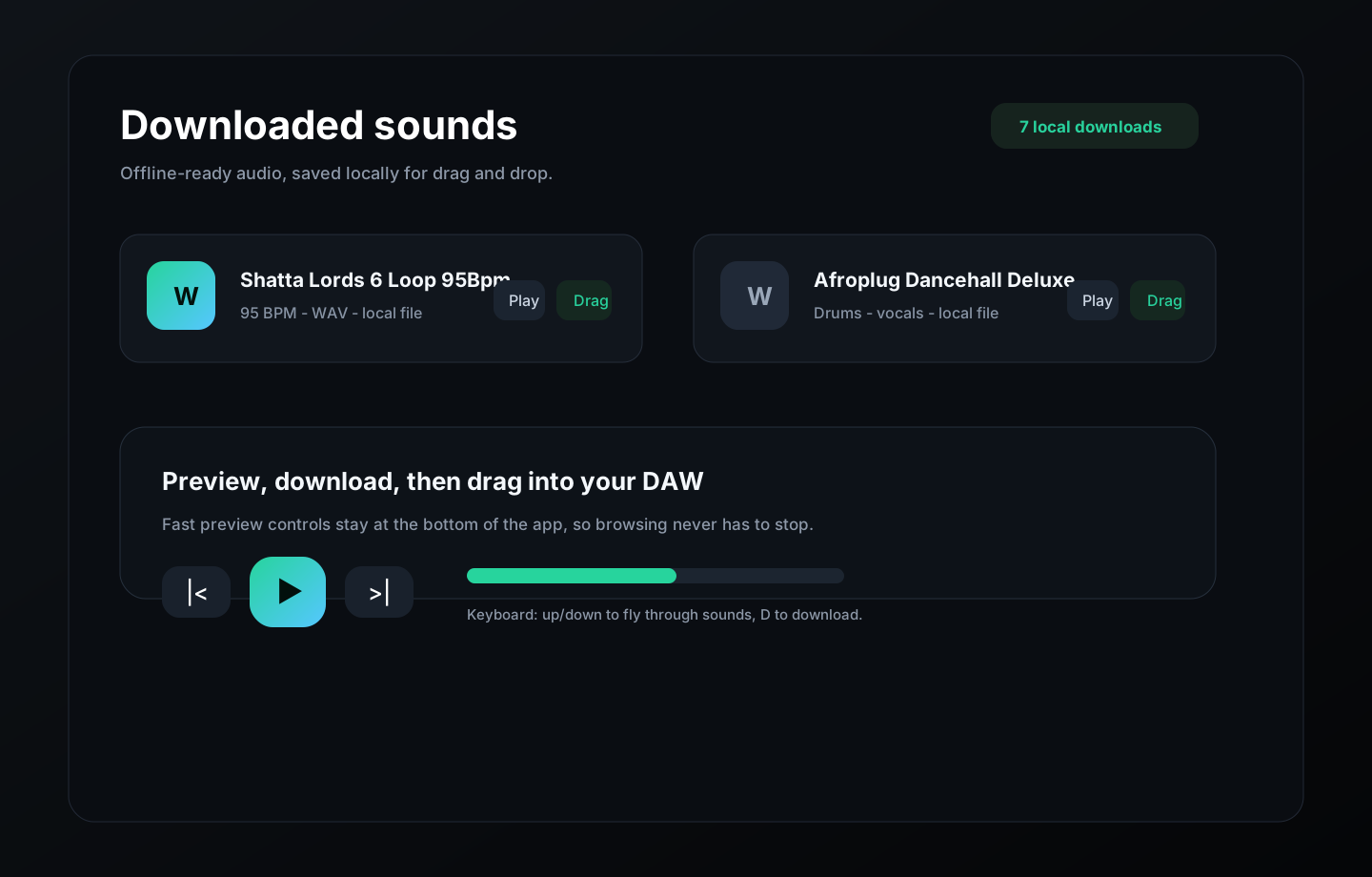
Downloaded audio stays local so producers can drag files into their DAW even when offline.
This is common for new independent apps while Apple and Microsoft signing trust is still being set up. Continue only from the official Wavswap page. If anything looks unusual, send screenshots or use the feedback form below.
Messages are saved securely on the server in the data folder. Add your email if you want a reply.
For install questions, email support@wavswap.com, godwonder@wavswap.com, or godwonderbeats@hotmail.nl.
12 feedback messages received